If you just got your BuzzTV box and want to start streaming live TV channels, sports, movies, and international content, you’re in the right place. This step-by-step guide will show you exactly how to setup IPTV on a BuzzTV Box using the built-in BuzzTV IPTV player no third-party apps required.
The whole setup takes less than 5 minutes once you have your subscription details. Let’s get started.
Quick note: This tutorial works for all BuzzTV models, including BuzzTV X5, X5 AX, XR4000, XPL3000, E5, B5, HD5, XRS4500, Buzz Essentials E2 SE, E2 MAX, and the BuzzTV VidStick HD.
What Is a BuzzTV Box and Why Use the Built-In Player?
This means you do not need to install third-party apps such as:
- STB Emulator
- IPTV Smarters Pro
- XCIPTV
- Tivimate
- Cheetah IPTV
The built-in BuzzTV player is faster, more stable, and easier to configure. You only need two pieces of information from your IPTV provider — a MAC address activation and a Portal URL.
If you don’t have an active IPTV subscription yet, you can get one from iptv.shop in just a few minutes. Our service is fully compatible with all BuzzTV models and we activate your MAC address remotely — no matter where you are in the world.
What You Need Before You Start
Before configuring IPTV on your BuzzTV box, make sure you have the following ready:
- A BuzzTV box connected to your TV via HDMI
- A stable internet connection (Wi-Fi or Ethernet, minimum 15 Mbps recommended for HD, 25+ Mbps for 4K)
- The BuzzTV remote control
- An active IPTV subscription from a trusted provider like ExampleIPTV.com
- Your MAC address (we’ll show you where to find it)
Step 1: Power On Your BuzzTV Box and Connect to the Internet
Plug your BuzzTV into a power outlet, connect the HDMI cable to your TV, and switch the TV input to the correct HDMI port. The BuzzTV home screen will appear after a few seconds.
If you haven’t already connected your device to the internet:
- Go to Settings → Network
- Choose Wi-Fi or Ethernet
- Select your network and enter the password (for Wi-Fi)
Make sure the connection is active before continuing.
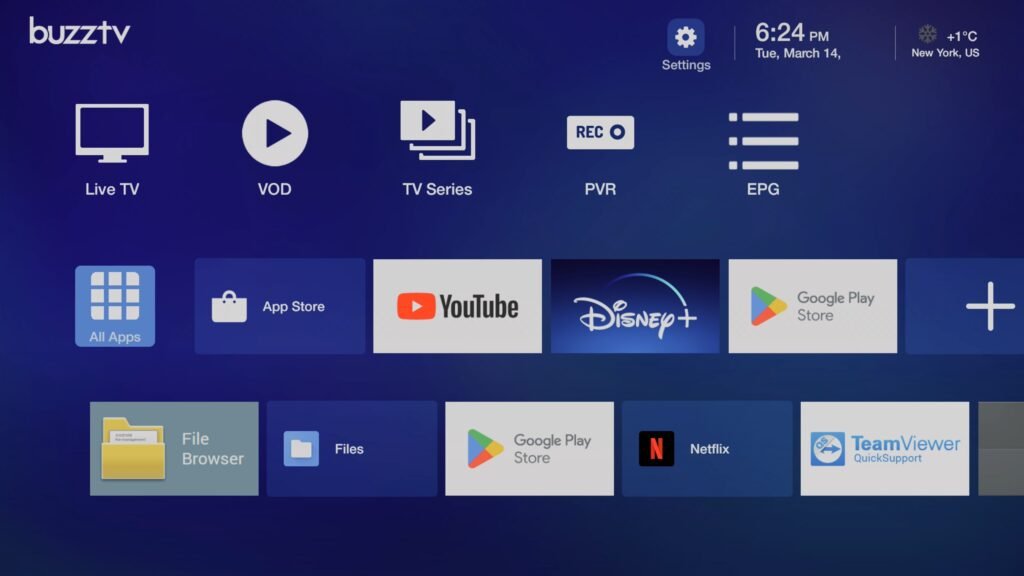
Step 2: Open Settings from the BuzzTV Home Screen
From the main BuzzTV home screen, use your remote to navigate to the Settings icon (gear icon) and press OK.
This opens the main configuration menu where you’ll find all the IPTV-related options.
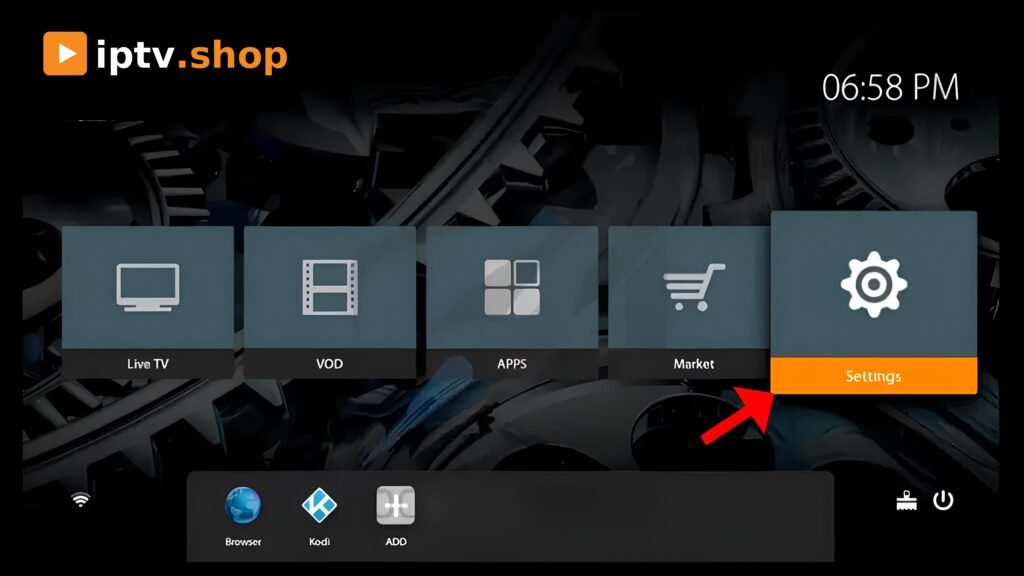
Step 3: Click on “Server” to Find Your MAC Address
Inside the Settings menu, scroll down and select Server.
On this screen you will see your unique MAC address — a 12-character code that looks something like:
00:1A:79:XX:XX:XXThis MAC address is critical. Send this MAC address to your IPTV provider so they can activate your subscription on their server.
If you’re a customer of iptv.shop, simply send your MAC address to our support team after purchasing your plan, and we’ll activate it within minutes.
Step 4: Enter the Portal URL Provided by Your IPTV Provider
Once your IPTV provider confirms that your MAC address has been activated, they will send you a Portal URL. This URL connects your BuzzTV directly to the IPTV server.
In the same Server screen on your BuzzTV:
- Select the Portal URL field
- Use the on-screen keyboard to enter the URL exactly as your provider sent it
- (Optional) Give it a Portal Name so you can identify it later (e.g., “ExampleIPTV”)
- Save and exit
Tip: Portal URLs are case-sensitive. Make sure you enter it exactly — one wrong character and the channels won’t load.
Step 5: Restart the BuzzTV App and Start Streaming
After saving the Portal URL, return to the BuzzTV home screen and click Live TV (or restart the BuzzTV app). Within a few seconds, your channel list will start loading.
You should now see:
- Live TV channels — sports, news, entertainment, international
- Movies (VOD) — on-demand movies in HD and 4K
- TV Series — full seasons of popular shows
- Catch-up TV — replay channels from the past several days (depending on your plan)
Pick any channel and press OK to start streaming.
Troubleshooting: Common BuzzTV IPTV Setup Issues
Most setups work on the first try, but if you run into issues, here are the most common problems and how to fix them:
1. “Invalid Portal URL” or No Channels Loading
- Double-check that the Portal URL is entered correctly (no spaces, correct capitalization)
- Confirm with your provider that your MAC address has been activated
- Restart the BuzzTV box and try again
2. Channels Buffering or Freezing
- Run an internet speed test — you need at least 15 Mbps for HD, 25+ Mbps for 4K
- Switch from Wi-Fi to Ethernet for a more stable connection
- Restart your router
3. Black Screen When Selecting a Channel
- Go to Settings → Player Settings and try changing the player from the default to an alternate one (HW+, SW, or Exo Player)
- Make sure your BuzzTV firmware is up to date (Settings → System Updates)
4. MAC Address Not Showing
- Reboot the device
- Make sure you’re inside Settings → Server, not a different menu
If issues continue, contact your IPTV provider’s support team. At iptv.shop, our support team is available to help you troubleshoot any setup issue, usually within minutes.
Frequently Asked Questions (FAQ)
Do I need to install any apps on my BuzzTV to watch IPTV?
No. BuzzTV boxes come with a built-in IPTV player specifically designed for MAC-based IPTV services. You only need a Portal URL from your provider.
Can I use any IPTV service with my BuzzTV box?
You can use any IPTV service that supports MAC-based (stalker) portals, which most premium IPTV providers do. iptv.shop is fully compatible with all BuzzTV models.
Where do I find the MAC address of my BuzzTV?
Go to Settings → Server from the BuzzTV home screen. Your MAC address will be displayed at the top of the screen.
Can I install IPTV Smarters or Tivimate on my BuzzTV?
Yes — BuzzTV runs Android, so you can install third-party apps from the Google Play Store. However, the built-in BuzzTV player is usually faster and more stable for MAC-based IPTV servers.
What internet speed do I need for IPTV on BuzzTV?
- SD channels: 5–10 Mbps
- HD channels: 15–20 Mbps
- 4K channels: 25+ Mbps
- A wired Ethernet connection is always recommended for the best stability.
How long does activation take with ExampleIPTV?
After you purchase a subscription and send us your MAC address, activation usually takes less than 15 minutes during business hours.
Final Thoughts
Setting up IPTV on a BuzzTV box is one of the easiest installations you can do — three settings menus and one Portal URL is all it takes. The built-in BuzzTV IPTV player gives you a clean, fast, and reliable experience without needing to mess with third-party apps.
If you’re still looking for a reliable IPTV provider for your BuzzTV box, iptv.shop offers premium subscriptions with thousands of HD and 4K channels, full VOD libraries, catch-up TV, and 24/7 customer support. Our service is fully compatible with every BuzzTV model on the market.
Get your IPTV subscription from iptv.shop today and start streaming in minutes.